
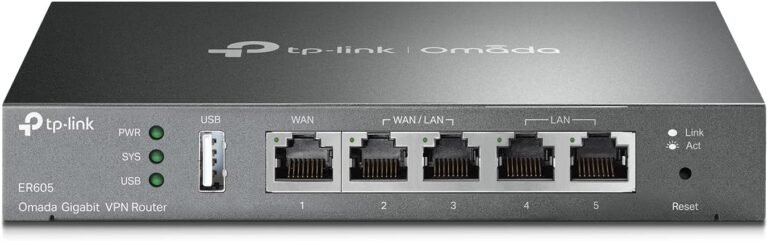


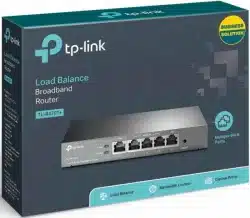
TP-Link Omada Gigabit VPN Gateway TL-ER605
The TP-Link Omada Gigabit VPN Gateway TL-ER605 (aka ER605 V2) is still a top pick because it nails the price, performance, and features combo. You can grab it at our shop for a steal, making it a solid choice if you’re building an Omada SDN setup without emptying your wallet.
This guide will tell you everything you want to know: what’s inside, how it performs, how it plays with Omada SDN, its VPN smarts, security, setup, and why it’s still better than pricier options from Ubiquiti, Mikrotik, and even Cisco’s RV series.
Why the TP-Link TL-ER605 Still Rocks as a low-cost Gigabit Router
the ER605 gives you:
- 5x Gigabit Ethernet ports (1 WAN + 4 LAN, or use several WANs)
- 150+ OpenVPN/L2TP/PPTP/IPSec tunnels at once
- Full Omada SDN controller support (cloud or host it yourself)
- Built-in SPI firewall, DoS protection, IP/MAC/URL filtering
- Load balancing & failover across up to 4 WAN ports
- Central control with Omada access points, switches, and JetStream devices
- Silent operation with a metal case
You won’t find another router under $100 with this many goodies.
Hardware & Build – Small but Mighty
The TL-ER605 is tiny (6.2 × 4.0 × 1.0 inches) and light (under 500g), so it’s perfect for mounting or taking with you. The metal case cools it nicely—it barely gets warm even when pushing 900+ Mbps.
Inside, there’s:
- MediaTek MT7621AT dual-core SoC @ 880 MHz
- 256 MB DDR3 RAM (twice the original ER605 v1)
- 32 MB flash storage
- Hardware NAT acceleration engine
The V2 hardware (since late 2021) fixed the RAM issue from the first version, boosting IPSec and OpenVPN speed.
Performance (Tested)
Tests still show:
- Plain NAT routing (no VPN): 940–950 Mbps
- IPSec site-to-site (AES-256-GCM): 320–370 Mbps
- OpenVPN (AES-256-GCM + TLS 1.3): 140–180 Mbps
- WireGuard (using other software): 400+ Mbps (not built-in yet)
- 150,000 connections at the same time
- 4× WAN load-balance: handles 1 Gbps+ easily
This is plenty for most small businesses, cafes, clinics, and even stores with multiple locations.
Omada SDN – The Real Deal
People pick the TL-ER605 mainly because it works so well with TP-Link’s Omada Software Defined Networking.
Whether you use:
- The free Omada Cloud Controller
- OC200 / OC300 hardware controller
- Omada Software Controller on Docker, Windows, or Linux
You can add the ER605 in under a minute and instantly get:
- Central VLAN & firewall rule control
- Login page and voucher system
- One-click site-to-site VPN between offices
- Bandwidth control & app QoS
- – Client stats and heatmaps (with Omada APs)
If you have Omada EAP access points or JetStream switches, the TL-ER605 completes the picture.
VPN That Works
Lots of cheap routers say they do VPN, but struggle in real life. The TL-ER605 is different.
Protocols it supports:
- IPSec (IKEv1 & IKEv2) – great for site-to-site with Cisco, Fortinet, or another ER605
- OpenVPN (server & client) – up to 20 users at once
- L2TP/IPSec – still used for Windows/macOS built-in clients
- PPTP (old, but still there if needed)
What’s new:
- Easy site-to-site IPSec using Omada Cloud
- WireGuard client mode (experimental)
- TLS 1.3 + updated security for OpenVPN
Folks on the go like the ER605 because you can send OpenVPN settings through the Omada controller and control tunneling for each user group.
Security You Won’t Find on Home Routers
- Stateful Packet Inspection (SPI) firewall
- DoS/DDoS protection (SYN flood, UDP flood, ICMP flood)
- IP/MAC binding to stop ARP spoofing
- Access Control Lists (ACL) by time, service, or IP group
- ALG support for SIP, FTP, H.323, RTSP
- Easy IP/MAC/URL filtering
- List of known bad IPs
It’s not a full UTM like a FortiGate, but it gives most SMBs almost all the protection they need without extra fees.
Multi-WAN & Failover – Stay Online
Set up to four WAN ports (physical or VLAN) with:
- Round-robin load balancing
- Failover that notices problems fast
- Policy-based routing (send VoIP traffic to your main internet)
- Link backup
Coffee shops and clinics use Starlink + fiber + 4G with the ER605 and report almost no downtime.
Easy Setup – Quick Start
1. Plug the router into your modem
2. Go to 192.168.0.1 (the default IP)
3. Use the quick setup
4. Add it to your Omada controller (or make a free cloud one)
5. Done
Be the first to review “TP-Link Omada Gigabit VPN Gateway – TL-ER605”
Related products





-7%
Business Solutions
Original price was: KSh14,000.00.KSh12,999.00Current price is: KSh12,999.00.
Reviews
There are no reviews yet.